

Getting Started
Managing Your Profile
Update your name, contact details, photo, and password, and find your notification and observation settings on My Profile.
My Profile holds the details your colleagues see next to your name in observations, coaching, and course records: your name, email, phone number, job title, employer, and photo. It is also where you change your password, choose which notifications you receive, and (if you observe teachers) find your observation settings.
Every user has a My Profile page, whatever their role.
Opening My Profile
Section titled “Opening My Profile”- Click your name or photo in the top-right corner of any page to open the account menu.
- Click My Profile.
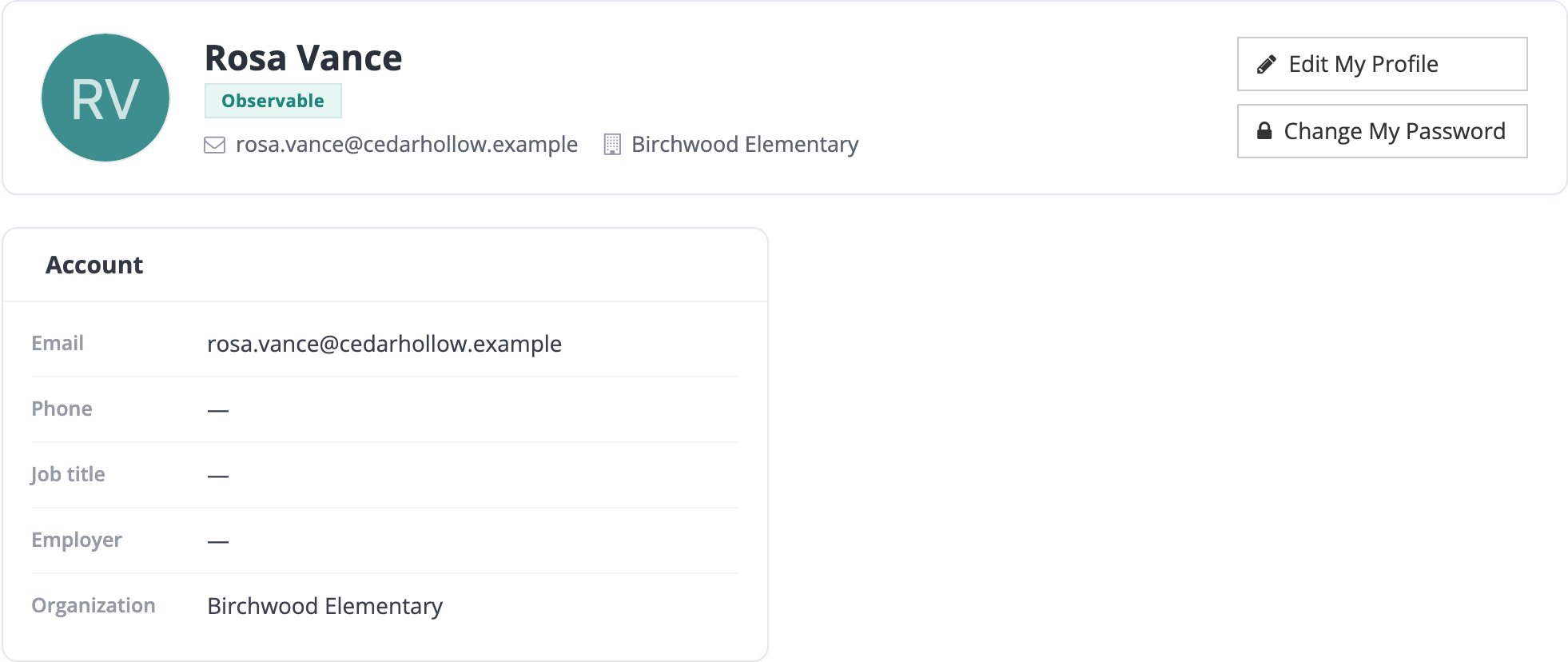
The top of the page shows your photo (or your initials), your name, your roles, your email, and the schools you belong to. The Account card lists your Email, Phone, Job title, Employer, and Organization. A dash means the field is empty.
Editing your profile
Section titled “Editing your profile”- On My Profile, click Edit My Profile.
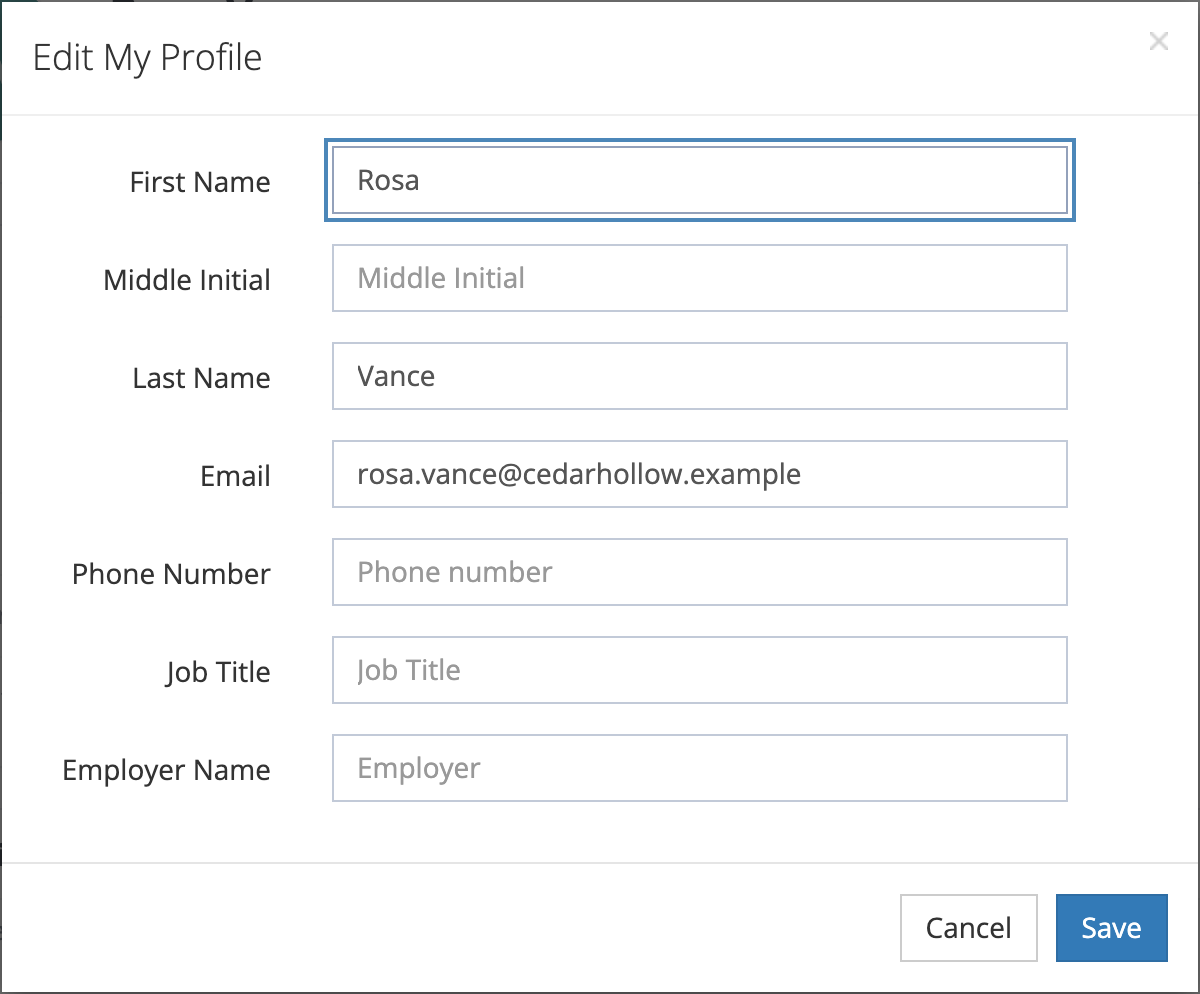
- In the Edit My Profile window, change any of these fields:
- First Name
- Middle Initial
- Last Name
- Phone Number
- Job Title
- Employer Name
- Click Save. The page updates with your changes. Click Cancel to close the window without saving.
Changing your email
Section titled “Changing your email”You can change your own email in Edit My Profile. Your email is also your sign-in, so after you save, sign in with the new address. Check it for typos before you click Save: your district’s emails (observation reports, reflection requests, course notices) go to the address on your profile.
If your district adds staff through directory sync, your directory owns your first name, last name, and email. Changes you make to those three fields in Edit My Profile are reverted when you save, without a message. Ask your district’s directory administrator to update them at the source. Your phone number, job title, and employer name stay editable.
Changing your profile photo
Section titled “Changing your profile photo”- On My Profile, point to your photo or initials. A camera icon with the word Edit appears.
- Click it to open the Profile photo window.
- Drag a photo onto the window, or click browse to pick one. JPG, PNG, and GIF files are accepted.
- Drag the photo to position it inside the circle, and use the slider to zoom. Click Choose different to pick another file.
- Click Save photo.
To go back to your initials, open the Profile photo window and click Remove current photo. That link appears only when you have a photo.
Changing your password
Section titled “Changing your password”- On My Profile, click Change My Password.
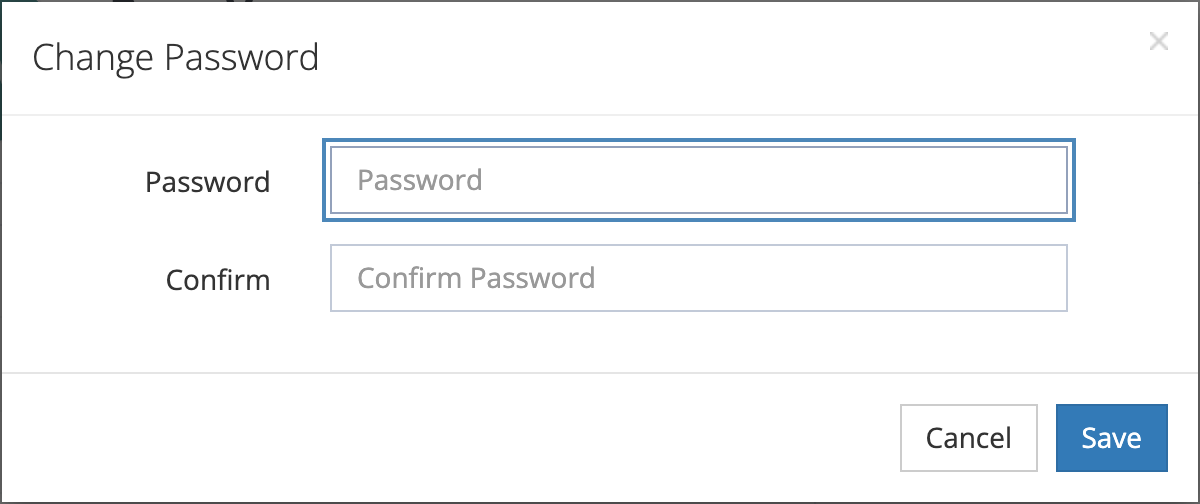
- In the Change Password window, type your new password in Password and again in Confirm.
- Click Save.
Your password must be 6–128 characters. There are no other rules, and you are not asked for your current password, so sign out when you step away from a shared classroom or library computer.
If your district signs in with SSO (for example, Google or Microsoft), you cannot change your password here. Clicking Change My Password shows “Passwords cannot be changed when SSO is enabled.” with the name of your sign-in provider. Change your password through that provider instead, or ask your district’s technology staff.
Observation settings (observers)
Section titled “Observation settings (observers)”If you have the observer role and your district uses weCLIMB, My Profile shows an Observation settings card with one checkbox: Auto-finalize on submit.
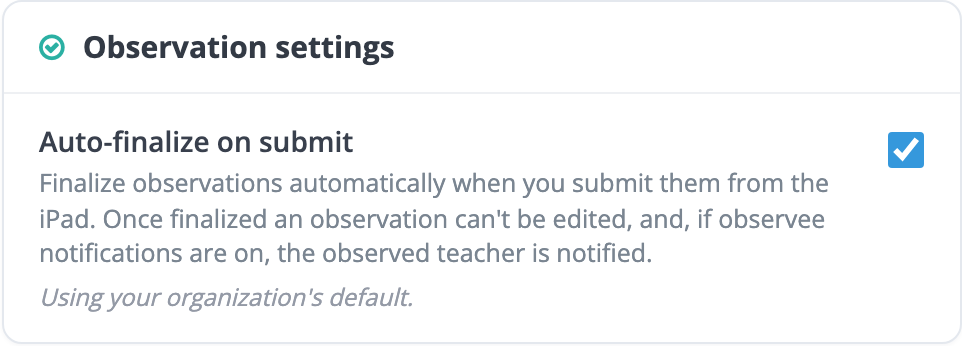
- Until you change it, the checkbox follows your district’s default, and the card says “Using your organization’s default.”
- Checking or unchecking the box saves your own choice right away. After that, the “default” note no longer appears, and My Profile offers no way to return to the district default.
The card’s help text says observations are finalized when you submit them from the iPad. Today the setting is saved and shown, but it has no effect: nothing on the server finalizes an observation on submit, and the current mobile app does not read the setting. Finalize observations the usual way.
Notifications
Section titled “Notifications”The Notifications card lists the emails and push notifications you can receive, grouped by observations, coaching, and messages and recommendations. Push applies only if your district uses a mobile app. Check or uncheck a box and the change saves automatically. The Final report email is locked on, and a row can note that your administrator has turned that notification off. Every district account has this card. For each category and what it controls, see How-to Guide: Managing Your Notification Preferences.
Your time zone
Section titled “Your time zone”Your time zone is set by your administrator. My Profile has no time zone field. The dates and times you see on pages, and the dates in observation emails sent to you, use the time zone a system administrator sets on your user account. If none is set, they use your district’s time zone, and if the district has none, Central Time (US & Canada). If your dates look off by an hour or more, ask a system administrator to check your time zone. See Time zones.