

Forms & Rubrics
Managing Form Access for Organizations
Grant a form to a school or department, grant it to member organizations in one step, set a grant's availability dates, and archive or delete access without affecting past observations.
Every form in your account is made available to organizations one at a time. An organization can use a form for a new observation only if it has been granted access to it.
You manage this from the organization itself, so you can see everything a single school or department can use in one place.
For how grants fit together with form sets and a form’s own status, see How Form Access Works.
Prerequisites
Section titled “Prerequisites”- system_administrator role
- weCLIMB enabled for the account
- At least one active form in the account
Viewing an Organization’s Form Access
Section titled “Viewing an Organization’s Form Access”- Navigate to System Administration > Organizations/Groups
- Click the organization you want to review
- Open the Form Grants tab
The tab lists every form the organization has been granted, with the Status of each grant and its Availability.
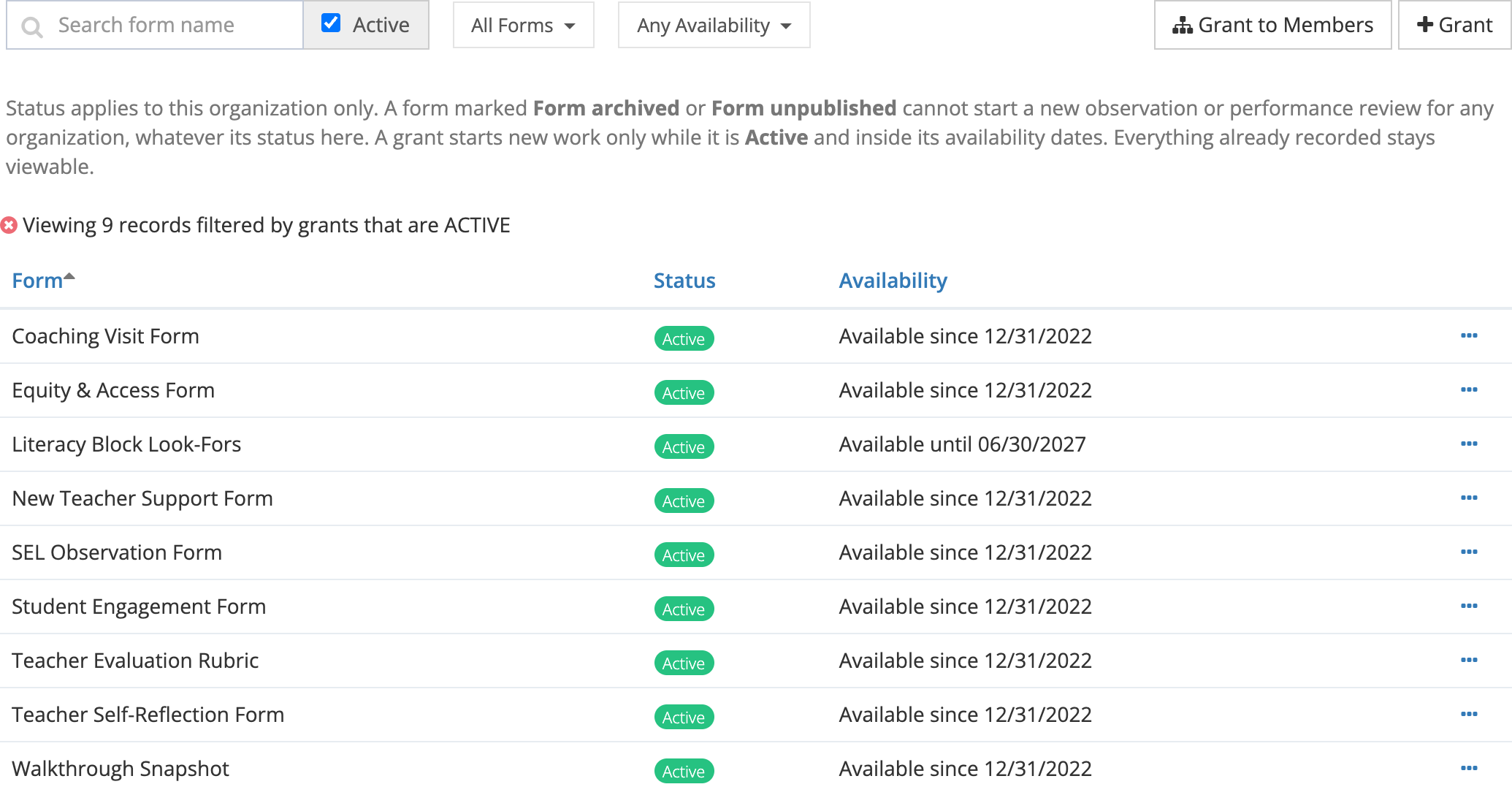
By default you see only active grants. Clear the Active checkbox beside the search box to include archived grants as well.
Three other controls help on larger accounts:
- The search box filters by form name
- The All Forms dropdown filters to specific forms
- The Any Availability dropdown filters to grants that are Available Now, Available in the Future, or Expired
A grant can start a new observation only while it is Active and inside its availability dates. See Availability Dates below.
Form archived and Form unpublished
Section titled “Form archived and Form unpublished”A form can carry a Form archived or Form unpublished label next to its name. That label describes the form itself, not this organization’s grant. A form marked Form archived or Form unpublished cannot start a new observation for any organization, whatever the grant’s status here. To use an archived form again, activate it under System Administration > Forms (see Building Forms and Sections).
Grants Belong to One Organization
Section titled “Grants Belong to One Organization”A grant applies to the organization it was made on, and to no other. Granting a form to a district does not give its schools access, and granting it to a school does not give the district access.
This means:
- A new organization starts with no forms. Until someone grants it a form, the organization’s page lists An active observation form set with a granted, published form under Requirements to enable observations.
- Each school needs its own grant. Use the member organizations option below to cover several schools in one step.
Granting Access to a Form
Section titled “Granting Access to a Form”- Open the organization’s Form Grants tab
- Click Grant
- Choose a form from the Form list
- Click Grant Access
The form appears in the list immediately, and staff at that organization can use it for new observations right away.
If you can set availability dates (see Who Can Set Dates), the window also offers Available on and Expires on. Leave both blank for a grant with no dates. Otherwise the window shows the grant’s Availability as Always available.
The Form list offers only active forms that this organization does not already have. If the organization already has every form in the account, the window tells you so instead of showing an empty list.
Granting the Same Form to Member Organizations
Section titled “Granting the Same Form to Member Organizations”When the organization has member organizations (for example, the schools that belong to a district), the Grant Form Access window offers to grant them the form at the same time.
- In the Grant Form Access window, choose the form
- Choose the schools or departments in the Member organizations list, or click Select all above the list to choose every one
- Click Grant Access
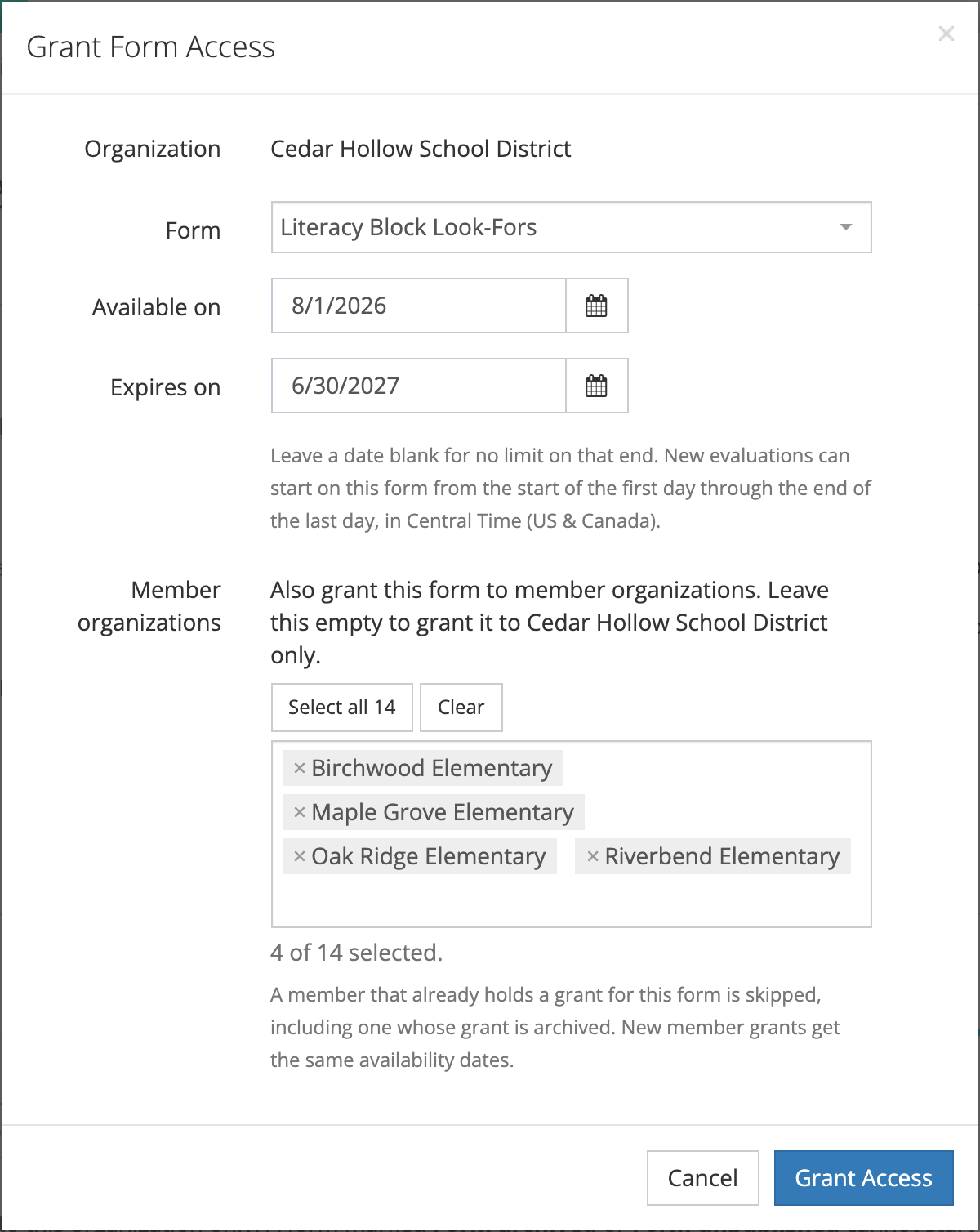
The list stays open after each choice, so you can pick several schools in a row. Clear above the list empties your selection, and the line below the list counts how many you have chosen. Leave the list empty to grant the form to this organization only.
Member grants made this way get the same availability dates as this organization’s grant.
On the account’s top-level organization, the list offers every organization in the account that you can manage, not only its direct members.
A message above the list confirms how many member organizations received the form.
A member organization that already holds a grant for the form is skipped, including one whose grant is archived. The window never reactivates an archived grant, so a school that was deliberately taken off a form stays off it. The message tells you how many were skipped.
The Member organizations list does not appear when the organization has no member organizations you can manage.
Granting the Forms Already in View to Member Organizations
Section titled “Granting the Forms Already in View to Member Organizations”Grant offers only forms this organization does not already have, so it cannot pass on a form the organization already holds. When a new school joins a district or a group, use Grant to Members instead. It works from the forms the tab is already showing.
- Open the organization’s Form Grants tab
- Filter the list until it shows the forms you want to pass on. The Active checkbox, the search box, the All Forms dropdown, and the Any Availability dropdown all apply.
- Click Grant to Members
- Check the count and the form names in the window, so you can see what is about to be granted
- Choose the schools or departments in the Member organizations list, or click Select all above the list to choose every one
- Click Grant Access
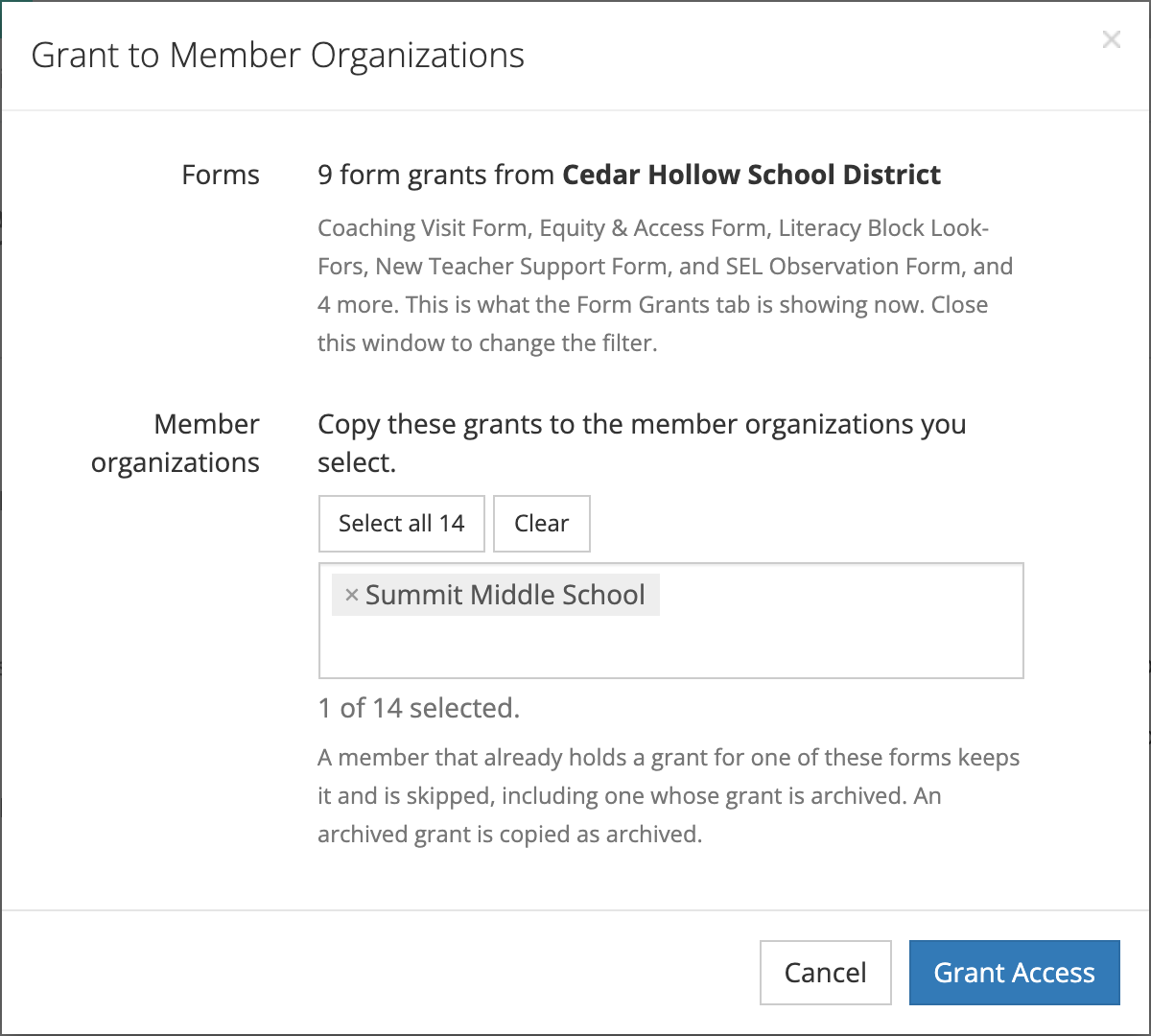
What the list is showing is what the member organizations receive, so the filter is the control. A message confirms how many grants were made and how many were skipped.
A member that already holds one of these forms keeps what it has and is skipped for that form, including one whose grant is archived. An archived grant is passed on as archived, so a form retired here arrives retired rather than active. Each grant is passed on with its availability dates.
Grant to Members appears only when the organization has member organizations you can manage.
Archiving Access to a Form
Section titled “Archiving Access to a Form”Archiving removes a form from the organization going forward, without touching anything already recorded.
- Find the form in the Form Grants tab
- Click the ⋯ menu at the end of its row
- Click Archive
- Read the summary, then click Yes, Archive
What archiving does
Section titled “What archiving does”Once a grant is archived:
- No one at that organization can start a new observation on that form
- If performance reviews are enabled for your account, no new performance review can be started on it either
What archiving does not do
Section titled “What archiving does not do”- Observations and performance reviews already recorded on the form stay as they are
- Staff at that organization can still open, read, and report on that past work
- Other organizations keep their own grants for the form
Archiving is reversible, and it deletes nothing.
Restoring Access to a Form
Section titled “Restoring Access to a Form”- Clear the Active checkbox so archived grants are visible
- Find the archived form in the list
- Click the ⋯ menu at the end of its row
- Click Activate
The grant returns to active and the organization can use the form for new observations again.
An organization keeps one grant per form, so a form that has been archived is restored rather than granted a second time. This is why an archived form does not appear in the Grant list.
Deleting a Grant
Section titled “Deleting a Grant”A grant made by mistake, or one that was never used, can be deleted while the organization has recorded nothing on the form.
- Find the form in the Form Grants tab
- Click the ⋯ menu at the end of its row
- Click Delete
- Read the summary, then click Yes, Delete
The form itself is not deleted, other organizations keep their access, and the form returns to this organization’s Grant list. An observation already started here with nothing recorded on the form no longer shows it.
Once the organization’s observations or performance reviews have answers, feedback, or attachments on the form, the grant cannot be deleted. The window says so and offers no delete button. Archive the grant instead.
Availability Dates
Section titled “Availability Dates”A grant can carry a start date, an end date, both, or neither. The Availability column shows where each grant stands:
| Availability | What it means |
|---|---|
| Always available | The grant has no dates |
| Available since a date | The grant started on that date and has no end date |
| Available until a date | The grant is open now and ends at the end of that day |
| Available on a date | The grant has not started yet and opens on that day |
| Expired on a date | The grant’s end date has passed |
Availability and Status are separate. A grant starts new observations only while it is Active and inside its dates:
- An expired grant stays Active. Its status does not change when the end date passes. It stops offering the form for new observations, and the Availability column shows Expired on with the date.
- An archived grant stays shut, whatever its dates say.
- A grant that has not started begins offering the form on its start date, with nothing for you to do.
As with archiving, dates affect new work only. Observations and performance reviews already recorded on the form stay readable after a grant expires.
Who Can Set Dates
Section titled “Who Can Set Dates”A system administrator who belongs to the account’s top-level organization can set dates. Other system administrators see the dates but cannot change them; to add, change, or remove a date, ask an administrator at the top level of the account, or contact Master Teacher.
Changing a Grant’s Dates
Section titled “Changing a Grant’s Dates”- Find the form in the Form Grants tab
- Click the ⋯ menu at the end of its row
- Click Edit Dates
- Set Available on, Expires on, or both. Leave a date blank for no limit on that end.
- Click Save Dates
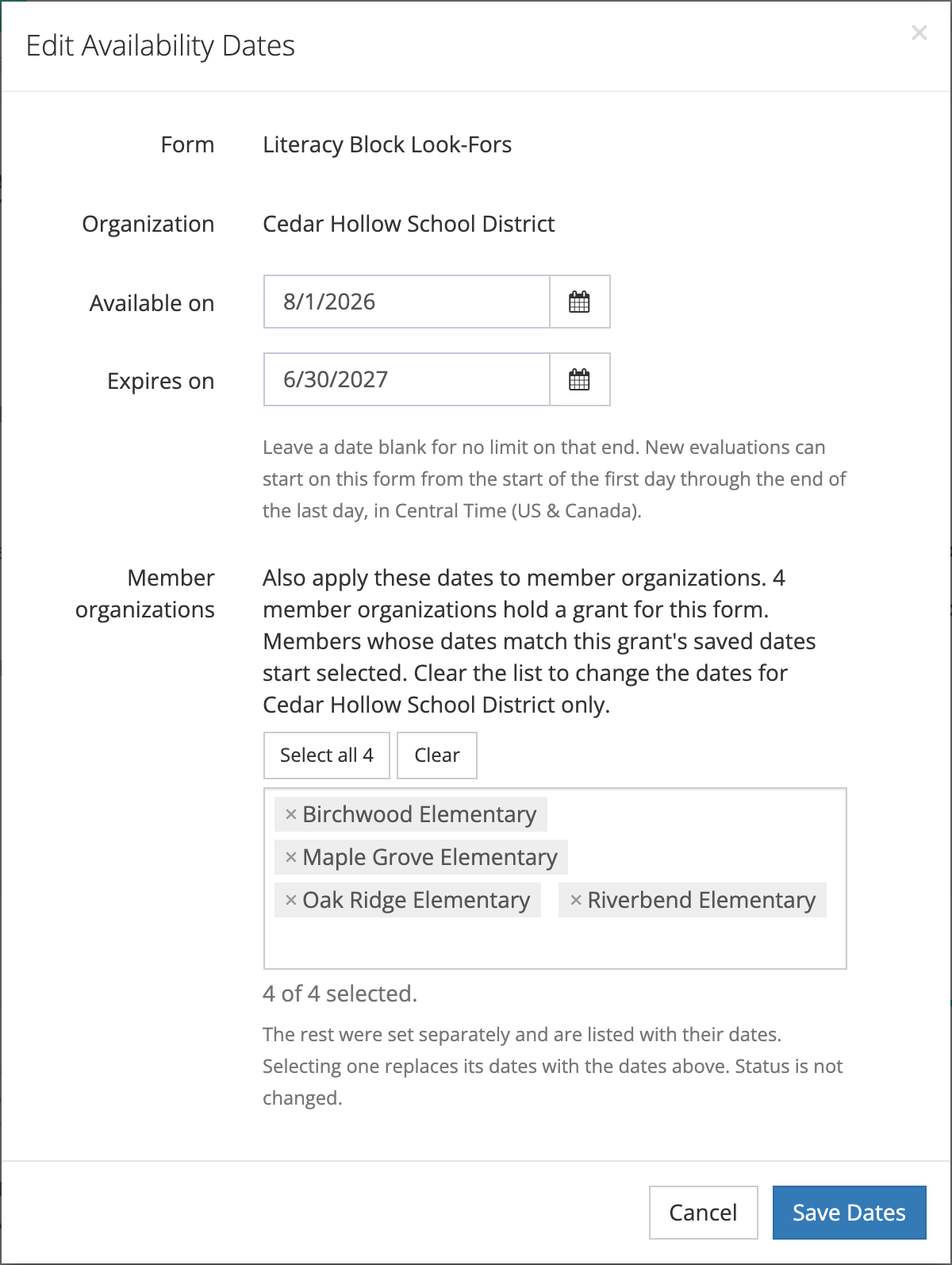
A grant opens at the start of its first day and closes at the end of its last day, in the account’s time zone. The end date must come after the start date.
Saving dates does not change the grant’s Status. An archived grant stays archived.
Changing Member Organizations’ Dates at the Same Time
Section titled “Changing Member Organizations’ Dates at the Same Time”When member organizations also hold a grant for the form, the Edit Availability Dates window lists them under Member organizations. Members whose dates match this grant’s saved dates start selected. A member whose dates were set separately is listed with its dates, and is not selected.
- Leave a member selected to give it the new dates
- Select a member set separately to replace its dates with the new ones
- Click Clear to change the dates for this organization only
To renew a form for another school year across a district, edit the dates on the district’s grant and keep its schools selected.
Choosing Between Archiving and Leaving Access in Place
Section titled “Choosing Between Archiving and Leaving Access in Place”Archive a form for an organization when:
- The school has moved to a newer version of an instrument for the coming year
- A form was granted to the wrong organization and the organization has already recorded work on it (otherwise, delete the grant)
- An instrument is being retired but its history still needs to be readable
Leave access in place when staff are still completing observations on the form, even if the evaluation window is closing soon. Archiving stops new work immediately.