

Reports
Observer Activity
See how many observations each observer has completed, who is keeping pace, and who may need a check-in.
The Observer Activity report lists each observer and how many observations they have completed. The list starts with the fewest, so the people who may need a check-in are at the top. Observers with none are included.
Role: system administrators and organization administrators. Organization administrators see only the observers in the schools they manage.
Opening the report
Section titled “Opening the report”Go to Reports > Observation Reports and click Observer Activity. Administrators without the reporter role do not see the Reports menu and can open the report from the Observe Dashboard.
From the Observe Dashboard, the Observers who recorded nothing count opens this report already filtered to those observers.
For a reminder of what each column means without leaving the page, click How to use this report in the upper right.
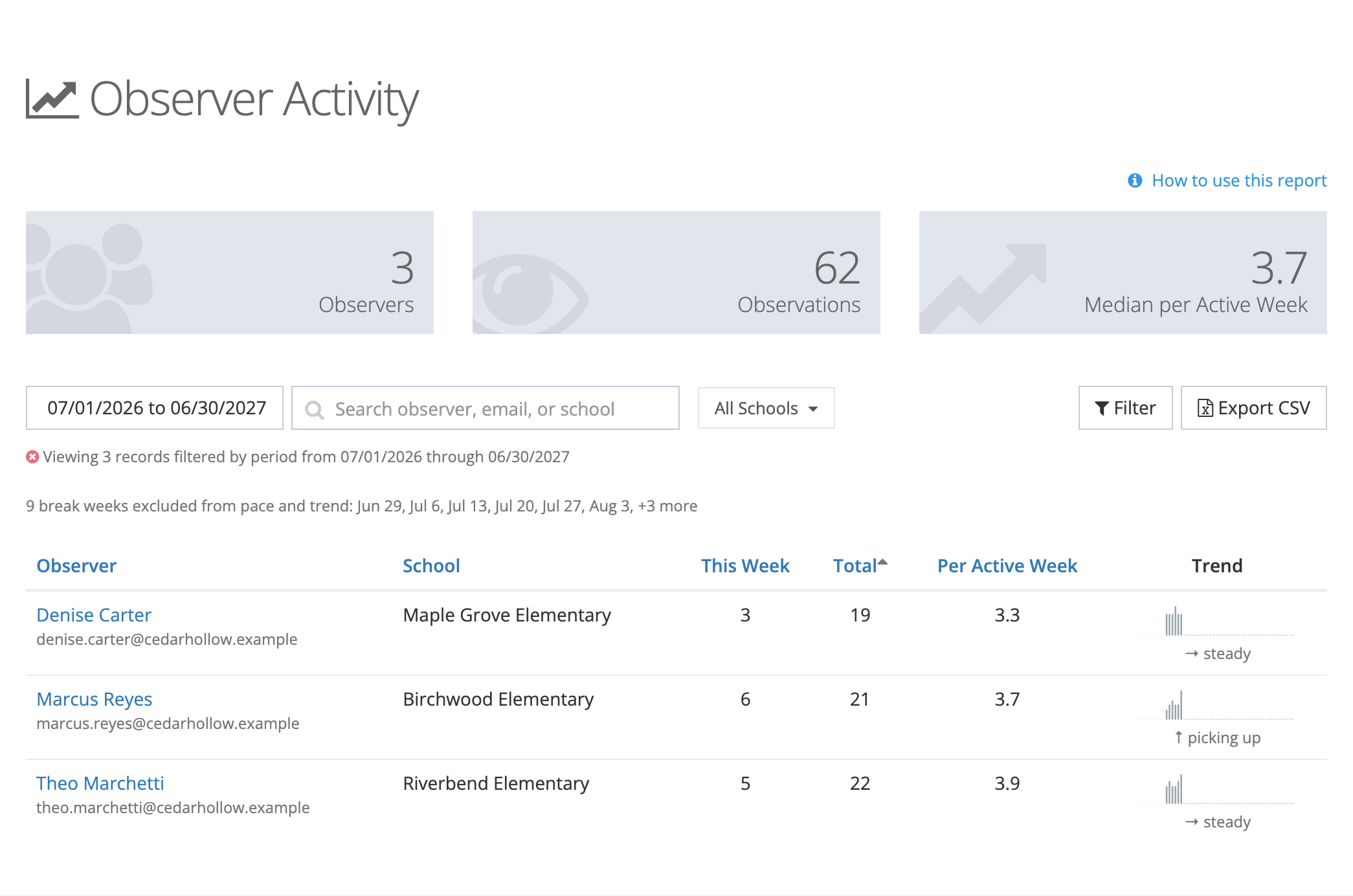
The cards at the top
Section titled “The cards at the top”- Observers: observers in the list.
- Observations: their observations in the date range, added together.
- Median per Active Week: the middle observer’s weekly pace. Half the observers are above it and half are below.
The cards follow every filter, including the search box.
Narrowing the list
Section titled “Narrowing the list”- Date range: defaults to the current school year. Pick a preset (Last 30 Days, Last 90 Days, This Month, This Quarter, Last Year, This Year, or All Time) or set your own start and end dates.
- Search: find an observer by name, email, or school.
- All Schools: open the dropdown, type to find a school, and tick one or more. The table updates as you tick. Clear all goes back to every school. With schools picked, the counts include only observations recorded at those schools.
- Filter: choose an Activity (All Observers, Recorded Nothing, or Recorded At Least One), then click Filter.
The line under the toolbar sums up the filters in use. Click the ✕ at the start of that line to clear them.
Reading the table
Section titled “Reading the table”- Observer: name and email. Click the name to open the observer’s detail page.
- School: where the observer did most of their observations in the date range, or their own school if they have none.
- This Week: observations this week, or in the last week of the date range if it has ended.
- Total: observations in the date range.
- Per Active Week: Total divided by the weeks so far in the date range, not counting break weeks. The current week counts only for the days that have passed, so the figure doesn’t dip every Monday.
- Trend: one bar per week, and a label that compares the last three weeks with the three before: picking up, steady, or trailing off. An observer with no observations shows no activity.
Only submitted observations count. Drafts do not.
Click a column heading to sort by it. Click it again to reverse the order.
The observer detail page
Section titled “The observer detail page”Click an observer’s name to open a page about that one person’s observation practice for the same date range. Principals use it to prepare for a check-in with an assistant principal or coach: it shows not only how many observations someone has done but which teachers they reach and whether their visits include feedback.
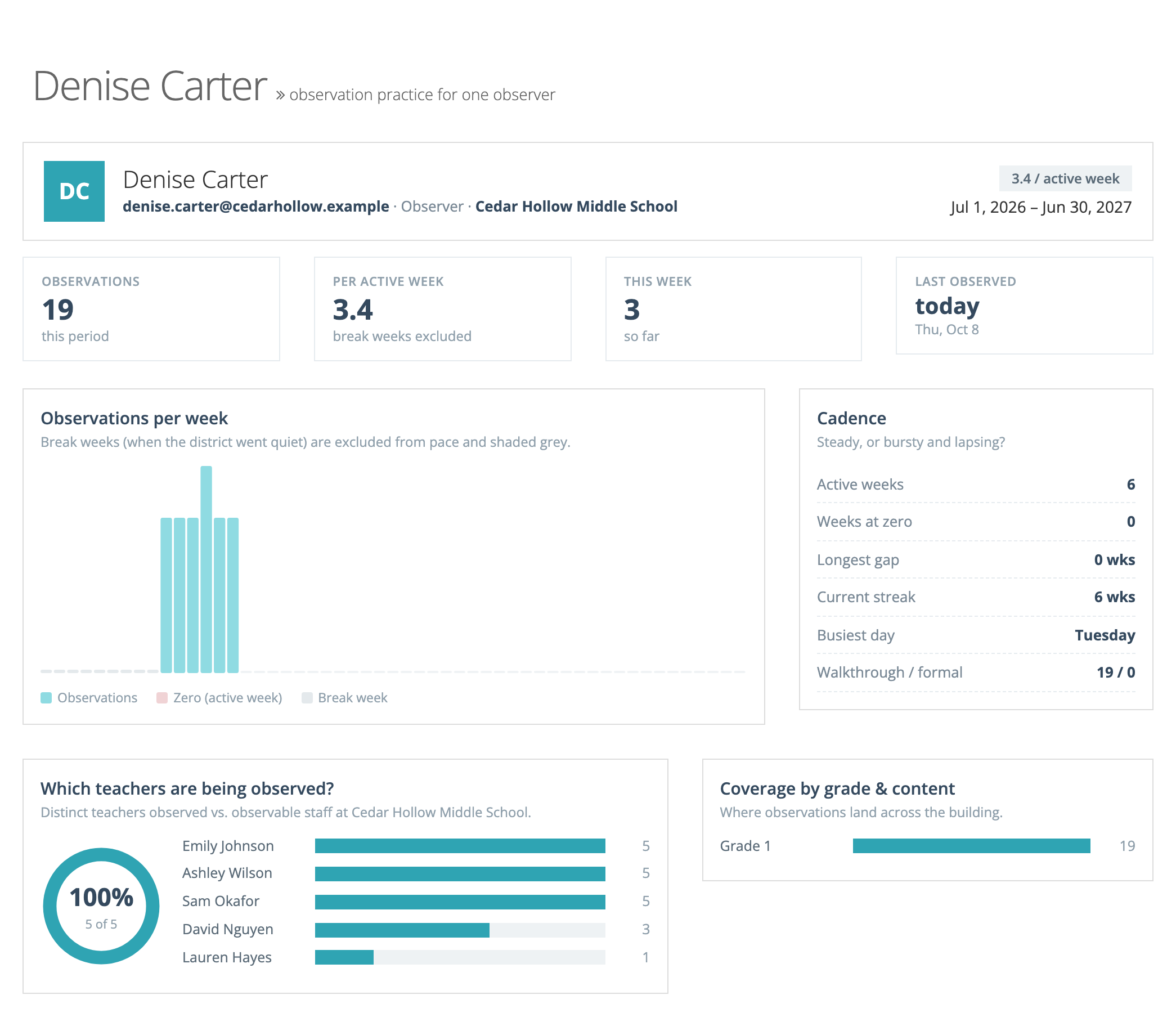
- Header: the observer’s name, email, and schools, their pace per active week, and the date range.
- Observations, Per active week, This week, and Last observed: the same figures as the report row, plus the date of the most recent observation.
- Observations per week: one bar per week. Weeks at zero are marked, and break weeks are shaded grey and left out of the pace.
- Cadence: Active weeks, Weeks at zero, Longest gap, Current streak, Busiest day, and Walkthrough / formal (how many of each type).
- Which teachers are being observed?: the share of observable staff at the observer’s school they have observed, the teachers they observe most, and how many teachers have not been observed in the period.
- Coverage by grade & content: where their observations land across grade levels.
- Are observations substantive?: the share of their observations that included written feedback, were acknowledged by the teacher, prompted a reflection, and were tagged with strengths or areas for growth.
- vs. peers: when the school has other observers, this observer’s rank for volume and for reach (teachers observed), and their feedback rate next to the school’s average.
- Observations: their most recent observations with Date, Teacher, Grade / Content, Type (Walkthrough or Formal), Feedback, and Ack’d. Click Open to view one. When there are more, a View all link opens the full list in the Observation Status Report.
How breaks are handled
Section titled “How breaks are handled”There is no school calendar to set up. The report finds breaks from the activity itself: a week when almost no one recorded an observation, such as winter break, is a break week.
Break weeks are left out of Per Active Week and Trend, so time off does not count against anyone. The weeks left out are listed above the table.
If no one recorded an observation in the date range, a note above the table suggests a different date range (for example, Last Year) or clearing the school filter.
One observer going quiet while everyone else keeps working is not a break. That is what this report is meant to show.
Exporting
Section titled “Exporting”Click Export CSV. A progress window opens, and the file downloads when it is ready. The export uses the same date range, schools, search, and Activity filter as the screen, with columns for Observer, Email, School, Total, Per Active Week, and This Week.
For a task-oriented walkthrough, see the How-to Guide: Observer Activity Report.