
weCLIMB Reports
Performance Review Reports
Access and analyze performance review data and evaluation results for staff development purposes.
Performance review reports provide comprehensive analysis of evaluation data to support staff development and administrative decision-making. These reports allow you to track progress, identify trends, and generate documentation for personnel records.
Accessing Performance Review Reports
Section titled “Accessing Performance Review Reports”Role Requirements
Section titled “Role Requirements”- System Administrator: Access all performance reviews across organizations
- Organization Administrator: View reviews within assigned organizations
- Reporter: Read-only access to assigned scope
- Evaluator: View reviews you conducted
- Observable: Access your own review results
Navigation
Section titled “Navigation”- Go to weCLIMB module
- Click Reports in navigation
- Select Performance Reviews
Viewing Performance Review Reports
Section titled “Viewing Performance Review Reports”Individual Review Reports
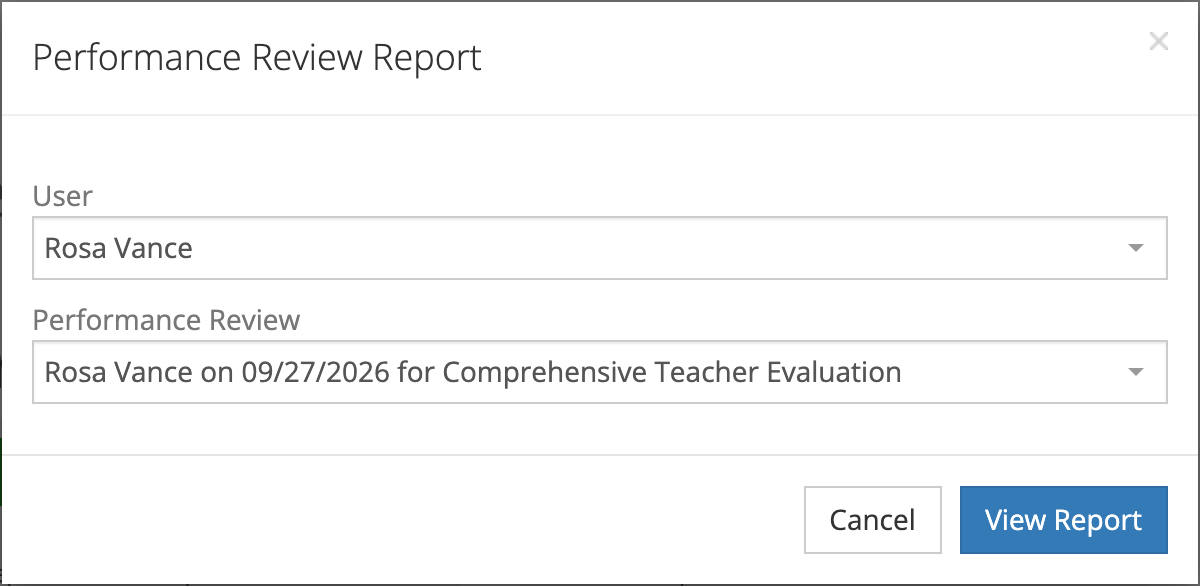
Section titled “Individual Review Reports”- Navigate to performance review list
- Click on specific review
- Select View Report
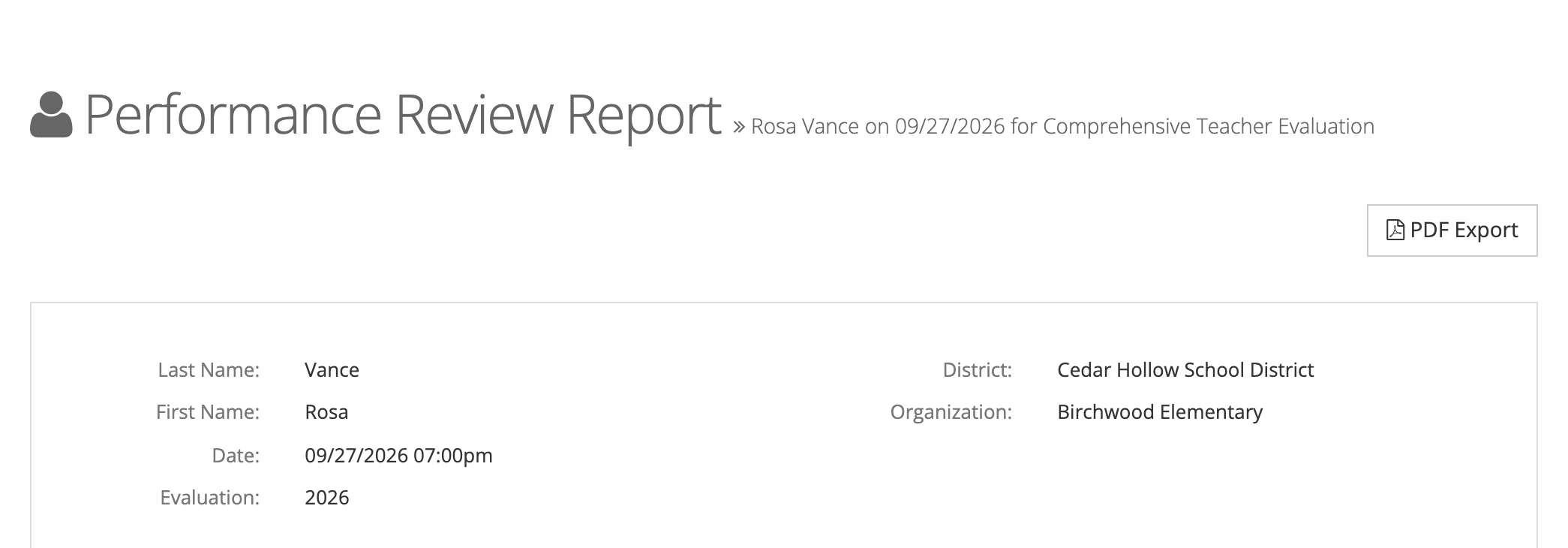
- Review displays:
- Overall scores by form section
- Rating scale results
- Evaluation period information
- Formal observation attachments
- Comments and feedback
Report Components
Section titled “Report Components”Each performance review report includes:
- Summary Scores: Aggregate ratings across all forms
- Section Breakdowns: Detailed scoring by evaluation criteria
- Rating Scales: Visual representation of performance levels
- Supporting Evidence: Attached formal observations
- Evaluator Comments: Feedback and recommendations
- Review Status: Draft, submitted, or finalized
Filtering Reviews by Evaluation Period
Section titled “Filtering Reviews by Evaluation Period”Setting Date Filters
Section titled “Setting Date Filters”- Use date range selector in report interface
- Choose from preset periods:
- Current school year
- Previous year
- Custom date range
- Apply filter to view results
Evaluation Period Options
Section titled “Evaluation Period Options”- Annual Reviews: Full-year evaluation cycles
- Mid-Year Reviews: Interim progress assessments
- Probationary Reviews: New teacher evaluation periods
- Custom Periods: District-defined review cycles
Accessing Individual Review Details
Section titled “Accessing Individual Review Details”Detailed View Options
Section titled “Detailed View Options”- Click review name to open full report
- Navigate between sections:
- Overview: Summary scores and status
- Rubrics: Detailed scoring matrices
- Evidence: Attached observations and documents
- History: Review timeline and changes
Review Status Indicators
Section titled “Review Status Indicators”- Draft: Review in progress, not finalized
- Submitted: Completed by evaluator, pending approval
- Approved: Finalized and locked
- Reopened: Unlocked for modifications
Comparing Performance Across Time Periods
Section titled “Comparing Performance Across Time Periods”Multi-Year Comparison
Section titled “Multi-Year Comparison”- Select staff member from review list
- Use Compare Years option
- View side-by-side performance data
- Analyze trends and improvement areas
Growth Tracking
Section titled “Growth Tracking”Performance comparisons show:
- Score changes between review periods
- Improvement in specific competency areas
- Consistent strength areas
- Areas needing continued support
Exporting Performance Review Data
Section titled “Exporting Performance Review Data”PDF Export Options
Section titled “PDF Export Options”- Open individual performance review
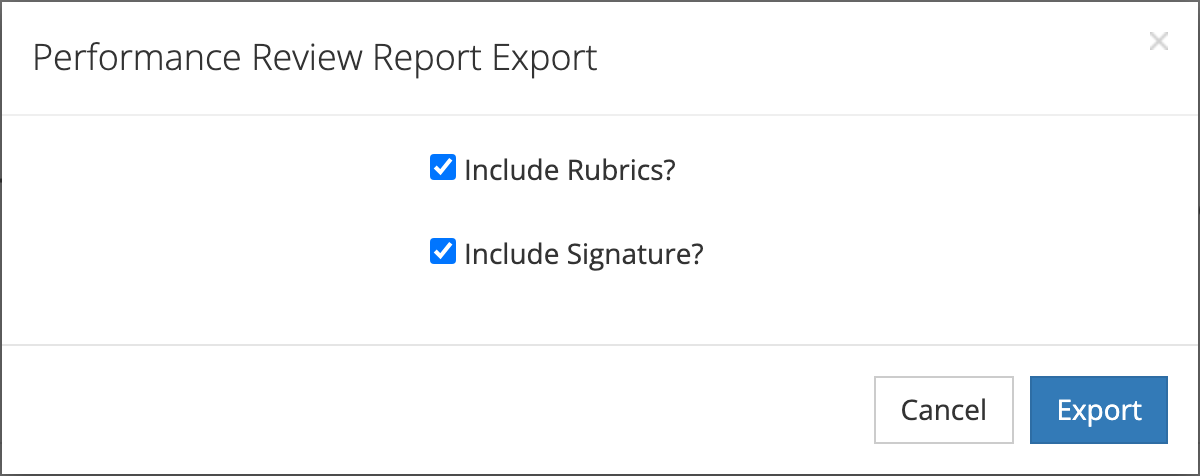
- Click Export to PDF
- Choose export options:
- Include rubric details
- Add signature lines
- Attach supporting documents
- Download generated report
Bulk Export
Section titled “Bulk Export”- Filter reviews by desired criteria
- Select Export All option
- Choose CSV format for data analysis
- Download compiled report file
Export Formats
Section titled “Export Formats”- PDF: Formatted reports for printing and filing
- CSV: Data export for spreadsheet analysis
- Summary Reports: Aggregate data across multiple reviews
Understanding Review Status Indicators
Section titled “Understanding Review Status Indicators”Status Types
Section titled “Status Types”- Green: Review completed on schedule
- Yellow: Review approaching deadline
- Red: Overdue review requiring attention
- Blue: Review in progress
- Gray: Future review not yet due
Deadline Management
Section titled “Deadline Management”The system tracks:
- Review due dates based on evaluation periods
- Automatic reminders for approaching deadlines
- Overdue review notifications
- Completion status across organization
Report Permissions and Access
Section titled “Report Permissions and Access”Data Visibility
Section titled “Data Visibility”Your access to performance review reports depends on your role:
- System Administrators see all reviews across organizations
- Organization Administrators access reviews within their schools
- Reporters view read-only data within assigned scope
- Evaluators see reviews they conducted
- Observable staff access only their own review results
Privacy Protection
Section titled “Privacy Protection”The system ensures:
- Role-based data filtering
- Organization boundary enforcement
- No unauthorized access to confidential evaluations
- Secure handling of personnel information