

How-to Guides
How-to Guide: Teacher Reflection & Acknowledgment
This guide walks through the three pieces of the post-observation workflow in weCLIMB and where to find them. It is written for district and building administrators who decide how the workflow runs, and for observers who submit and close observations.
Overview
Section titled “Overview”The workflow has three layers. Each works on its own, and they are designed to work together.
- Teacher reflection lets the teacher write a self-reflection on the observation, using prompts set on the Form Set.
- Teacher acknowledgment records, with the teacher’s name and the time, that the teacher has reviewed the observation, with an optional statement of disagreement and a written explanation.
- Magic-link access puts a secure link in the teacher’s email that opens the observation directly. The teacher can reflect, acknowledge, and comment without logging in.
Reflection and acknowledgment are off by default on every Form Set. Magic-link access is on by default for the account. With reflection and acknowledgment off, an observer’s Submit Observation closes the observation in one step.
Part 1: Turning reflection and acknowledgment on
Section titled “Part 1: Turning reflection and acknowledgment on”Who can change it
Section titled “Who can change it”Both switches live on the Form Set. Editing a Form Set takes the Publisher role or your account team. A system administrator can open Form Sets under the admin Observe heading and read each Form Set’s settings, then ask for a change.
The two switches
Section titled “The two switches”In the Form Set’s edit window:
- Reflection?: when checked, the teacher completes a self-reflection after the observation is submitted. When acknowledgment is also required, the reflection comes first.
- Acknowledgment?: when checked, the teacher is asked to acknowledge the observation, either as reviewed or with written disagreement.
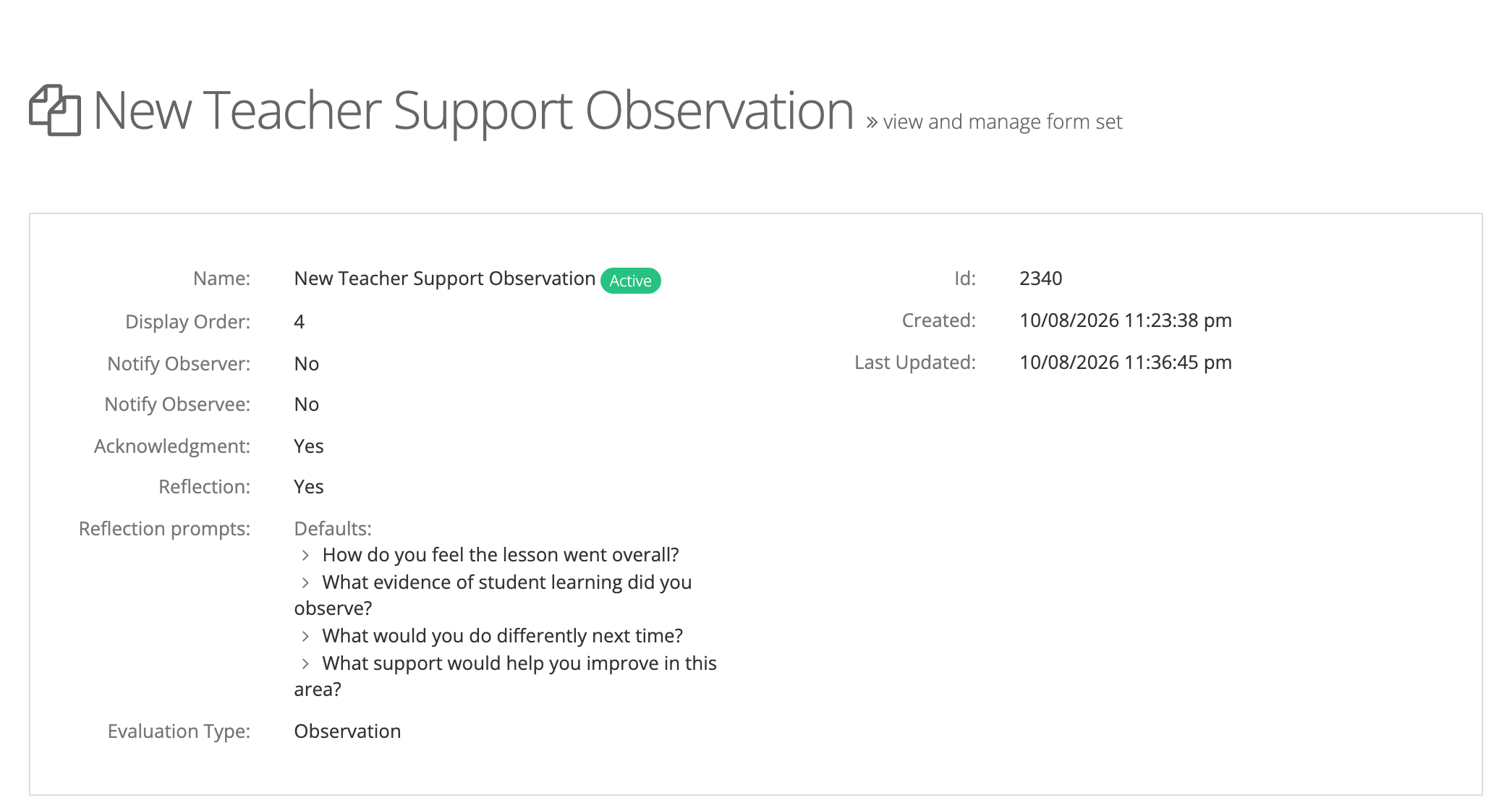
The Form Set page then shows Acknowledgment and Reflection as Yes or No.
A note on scope
Section titled “A note on scope”Each switch is copied onto an observation when the observation is created. Turning a switch on applies only to observations created afterwards. Existing observations keep the rules they started with, so you can turn reflection or acknowledgment on mid-year without older observations landing in teachers’ to-do lists.
Because the switches are per Form Set, a district can require them on its formal evaluation Form Set and leave walkthrough Form Sets unchanged.
Magic links
Section titled “Magic links”Magic links are an account-wide switch on the Observe Settings page: Allow magic link access?. A system administrator manages it. When it is on, reflection requests, acknowledgment requests, and the closing email include a link that opens the observation with no login. Links expire after 30 days.
Teacher emails go out only when Notify observee? is on in Observe Settings and on the Form Set.
Part 2: Customizing reflection prompts on a Form Set
Section titled “Part 2: Customizing reflection prompts on a Form Set”The prompts the teacher answers come from the Form Set. When none are entered, the teacher sees four default prompts:
- How do you feel the lesson went overall?
- What evidence of student learning did you observe?
- What would you do differently next time?
- What support would help you improve in this area?
To change them, in the Form Set’s edit window:
- Check Reflection?. The Reflection prompts box appears under it.
- Edit the prompts, one per line (up to 10, each up to 500 characters). Reset to defaults puts the defaults back.
- Save the Form Set.
Unchecking Reflection? hides the prompts box, and the prompts are kept. Prompt edits apply right away, including to observations already waiting for a reflection.
Part 3: Submitting and closing an observation (observer)
Section titled “Part 3: Submitting and closing an observation (observer)”The observation page
Section titled “The observation page”The observation page has section tabs: Details, Observation, Overall feedback (when there is one), Reflection, Acknowledgment, and Closure (once closed). Two things on the page help you orient:
- The state summary at the top says where the observation is: Open, Awaiting reflection, Awaiting acknowledgment, Awaiting closure, or Closed.
- The next-step card on the right names what happens next, such as Ready when you are, Waiting on the teacher, or Ready to close, with the button for it.
Submitting
Section titled “Submitting”Click Submit Observation and confirm. What happens depends on the Form Set:
- When the Form Set requires reflection or acknowledgment: the observation waits in Awaiting reflection or Awaiting acknowledgment. The teacher gets a reflection request or an acknowledgment request by email when teacher emails are on.
- When neither is required: submitting closes the observation in the same step.
After the teacher responds, the observation moves to Awaiting closure and the card reads Ready to close. Click Close Observation to finish. The observer or an administrator can close it.
Closing without the teacher’s response (administrator)
Section titled “Closing without the teacher’s response (administrator)”Sometimes a teacher never answers: they are on extended leave, they have left the district, or the evaluation window has closed.
An organization administrator or system administrator can close anyway. On an observation waiting on the teacher, a Close without acknowledgment link (or Close without reflection) appears in the Waiting on the teacher card. An observer who is not also an administrator does not see it.
The close window asks for a Close note. The teacher sees that note on the observation, so they know why it was closed without them.
Closing this way does not shut the teacher out. They can still respond afterwards, and the observation stays closed.
Downloading the PDF
Section titled “Downloading the PDF”Click PDF on the observation page to open Export Observation PDF, then click Generate PDF. The PDF includes the Reflection, Acknowledgment, and Closure sections when they apply. See The Observation Page for the toolbar and PDF options.
Reopening an observation
Section titled “Reopening an observation”Observers, evaluators, and organization and system administrators can reopen a submitted or closed observation within their reach, with a required Reopen note. Reopening clears the teacher’s reflection and acknowledgment, so the teacher is asked again after you resubmit. It also stops the teacher’s outstanding magic link, and no email is sent, so tell the teacher yourself. See Scores and Reopening for the full steps and the reopen history.
What the teacher receives
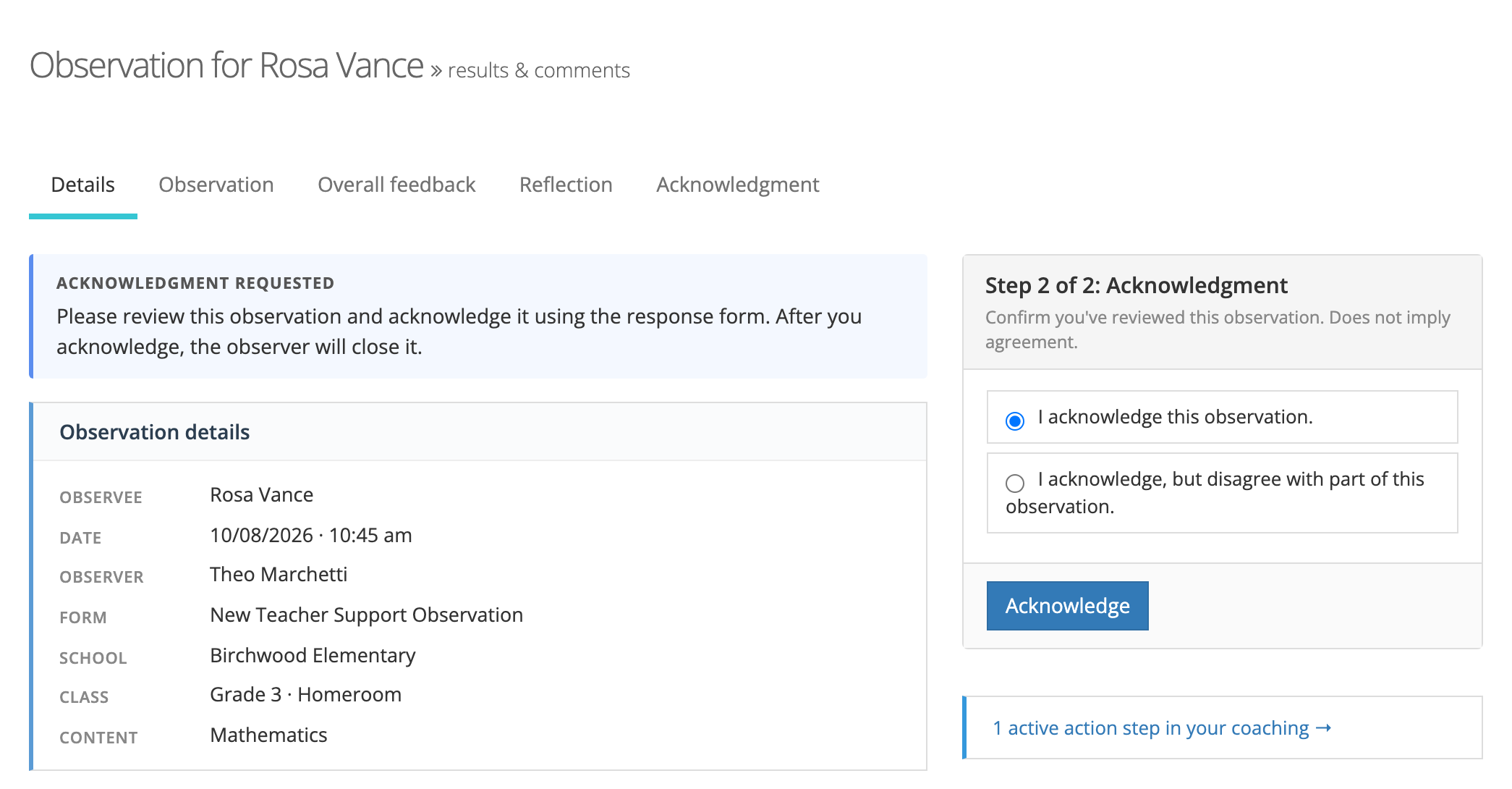
Section titled “What the teacher receives”After you submit, the teacher sees a status band at the top of the observation (Reflection requested or Acknowledgment requested) and the response form in the right-hand column.
When teacher emails are on:
- If reflection is required, the teacher gets a Please reflect on your observation from observer name email when you submit.
- If only acknowledgment is required, they get a Please acknowledge your observation from observer name email when you submit.
- If both are required, the reflection email comes first, and the acknowledgment email follows about five minutes after the teacher submits the reflection.
- When the observation closes, the teacher gets one closing email with a link to the observation.
If Notify observee? is off for the account or the Form Set, no teacher emails go out. The teacher still sees the request when they sign in.
Where everything lives
Section titled “Where everything lives”Under the admin weCLIMB heading:
- Settings (Observe Settings): Allow magic link access? and Notify observee?. System administrators only.
- Form Sets: Reflection?, Acknowledgment?, and the reflection prompts. Viewable by system administrators; editable by publishers and your account team.
The observation page itself (section tabs, next-step card, Submit Observation, PDF, Reopen) works the same on every observation with no setup.
A few things to know
Section titled “A few things to know”- All three pieces are optional. With reflection and acknowledgment off, observers click Submit Observation and the observation closes.
- Settings are forward-looking. Turning reflection or acknowledgment on affects only observations created afterwards.
- Responses are final. A teacher cannot edit a reflection or acknowledgment after submitting it. To change one, the observation must be reopened.
- Reopening is not admin-only. Observers and evaluators can reopen, and every reopen needs a note and is recorded. Viewing the reopen history is admin-only.
- Magic links stop working when the observation closes or is reopened, and expire after 30 days. The email sent when the observation closes carries a new link. A closed or replaced link shows No further action needed with a Log in button. An expired link shows This link has expired with a Send me a fresh link button.
- Performance reviews follow the same lifecycle: submit, awaiting the teacher, close, and reopen.