Courses
Finding and Accessing Your Courses
Find the courses your district assigned to you, read a course card, and open a course in the player.
Courses are the main form of professional learning in eLearn: a classroom management series for new teachers, a module on giving actionable feedback, a refresher on writing across the curriculum. This article covers finding a course and opening it. For the dashboard tabs and filters that apply to every kind of content, see Accessing Your Learning Content.
Where your courses are
Section titled “Where your courses are”- Courses under LEARN in the sidebar lists every course assigned to you. Your publisher may use a different name for this content type.
- My Dashboard shows courses on its Required Content, Continue Content, and Individual Content tabs.
- A learning path or content library page lists the courses inside it.
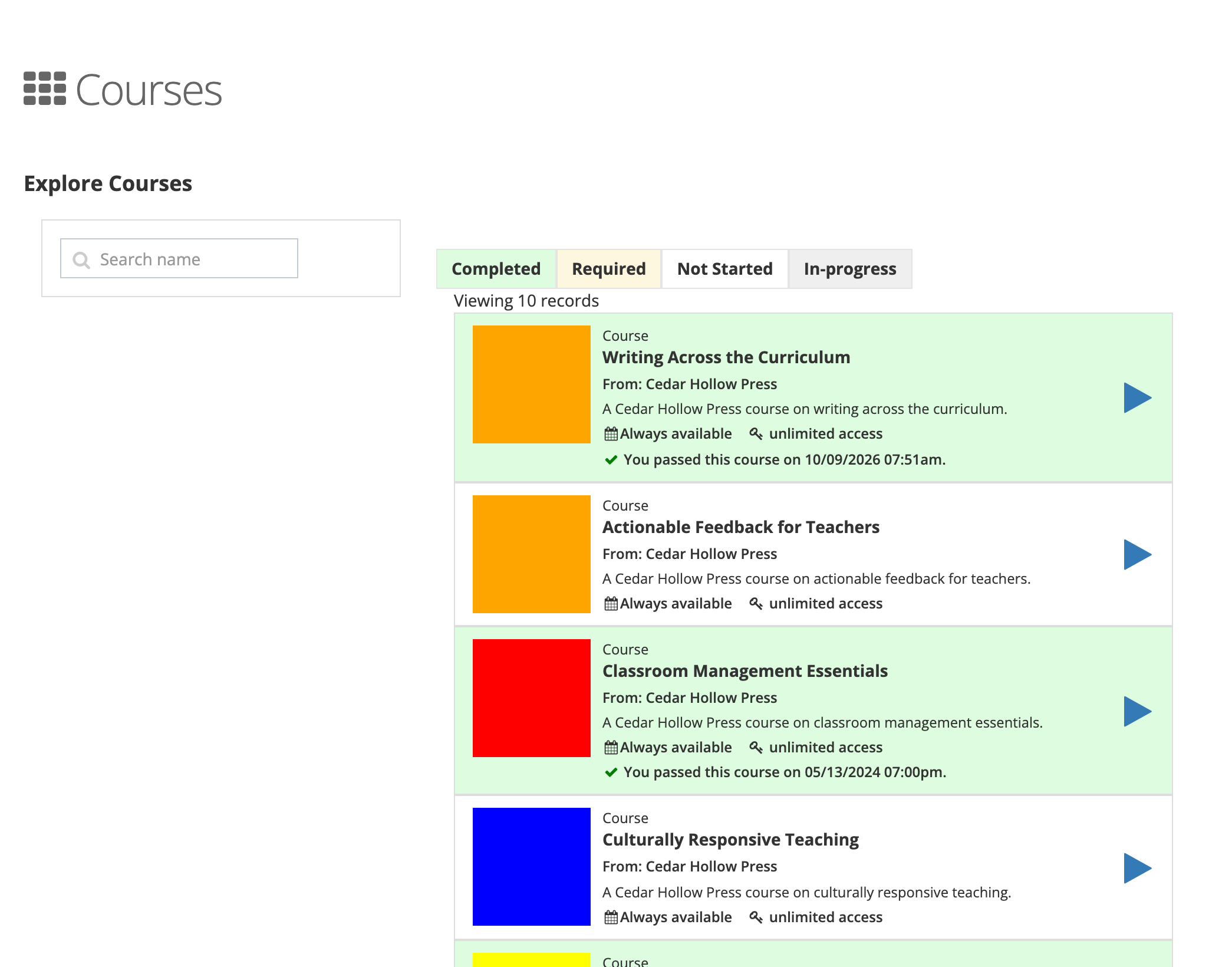
To narrow the Courses page, type in Search name, check a box under Topics, or click Completed, Required, Not Started, or In-progress.
Reading a course card
Section titled “Reading a course card”Each card on the Courses page shows, from top to bottom:
- The content type and item number (for example “Course”)
- The course name
- From: and the publisher’s name
- The description
- When the course is available: Always available, or the dates it opens and closes
- Licensing: unlimited access, or how many of your district’s licenses remain
- The estimated time in minutes, when the publisher set one
- Proctored, when the course can be taken only during a proctored session
- Your status: when you started, passed, or completed it, or Required with its due date
The card background shows your status at a glance. See Tracking Your Learning Progress.
Opening a course
Section titled “Opening a course”- Find the course on the Courses page, on a learning path or library page, or on My Dashboard.
- Click the play button on the card (on My Dashboard, click the card).
- The course opens in the player over the page. If you started it before, it opens at the first section you have not completed.
See Taking Courses for how the player works.
When a course does not open
Section titled “When a course does not open”A card with a ban icon and This content is currently not available has no active chapters yet, so there is nothing to open. If you click the play button and a message box opens instead of the player (for example No Licenses Available or Product Unavailable), see When Content Will Not Open for what each message means and whom to contact.
A Proctored course sends you to a proctored session instead of the player. Depending on the session, you may be asked for an enrollment code or wait in the proctor lobby. See Proctored Courses and Sessions.