eLearn Reports
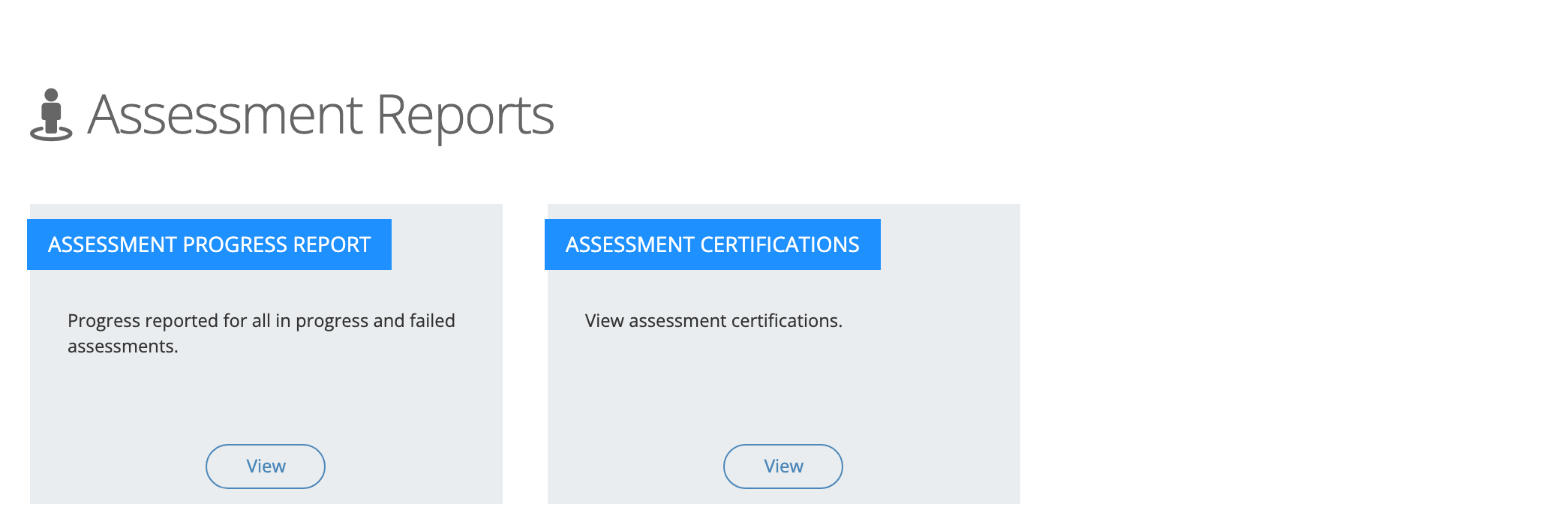
Assessment Reports
Track assessments that are in progress or failed, and review certifications issued after proctored assessments.
The Assessment Reports page holds two reports:
- Assessment Progress report: assessments that people have started but not finished, and assessments they failed. Use it to find teachers who need support or a retake before a certification deadline.
- Assessment Certifications: the certifications issued when a proctored assessment is finalized. Use it to confirm who is certified and to download or resend a certificate.
Role required: reporter
Open the reports
Section titled “Open the reports”- In the left menu, select Reports > Assessment Reports.
- Select View on the card you want.
Assessment Progress Report
Section titled “Assessment Progress Report”The report lists assessment enrollments that are:
- in progress (started, progress above 0%, not complete),
- being retaken (finished before, new attempt not started yet), or
- failed.
If you are also a proctor, it includes assessments taken in sessions you proctored.
Columns
Section titled “Columns”| Column | What it shows |
|---|---|
| Assessment | The assessment name. When results exist, the name is a link. |
| User | The person’s name, an Active or Archived badge, email, and organizations. |
| Started On | When the person started the assessment. |
| Progress | Percent complete. |
| Status | In Progress, Not Started, or Failed. |
Select a column heading to sort by it.
View a person’s results
Section titled “View a person’s results”Select a linked assessment name to open Results for the person: the proctor information (for a proctored assessment), the final score, the score needed to pass, the attempts, and each attempt’s score. Assessment Reports in the Assessments collection describes the window field by field.
Search, dates, and filters
Section titled “Search, dates, and filters”- Type in Search assessment or user to match an assessment or a person’s name.
- The date button filters by Started On. The report opens showing assessments started since July 1 of the current school year.
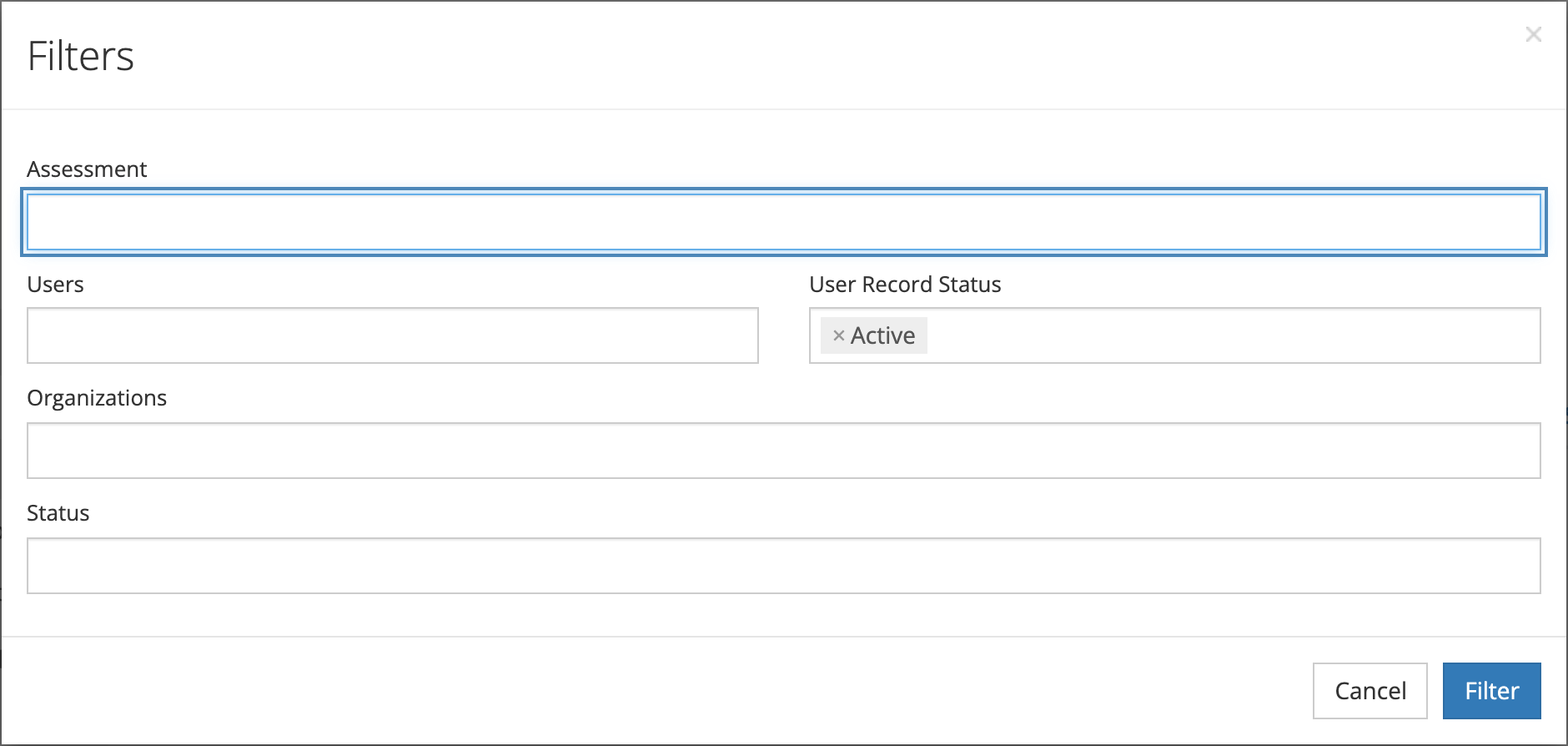
- Select Filter to filter by Assessment, Users, User Record Status (Active by default), Organizations, and Status (Failed or In Progress), then select Filter.
This report has no export.
Assessment Certifications Report
Section titled “Assessment Certifications Report”The Assessment Certifications Report lists certifications for the people you can see. It opens filtered to the current school year (July 1 to June 30) by Certified On date and to active users.
Columns
Section titled “Columns”| Column | What it shows |
|---|---|
| Assessment | The assessment or learning path that was certified. Records flagged as legacy carry a Legacy badge. For a single assessment, select its name to open Proctor Certification Details. |
| User | The person who earned the certification. |
| Proctor | The proctor who certified the result. |
| Certified On | When the certification was issued. |
| Final Score | The score. For a learning path, select Show Scores (or the arrow at the left of the row) to see each assessment in the path. |
When a certificate file is attached, the row shows Download Certificate, and the row menu offers Download Certificate and Resend Certificate.
Proctor Certification Details shows the proctor’s name, job title, employer, email, and phone number; the Final Score, Score Needed To Pass, Attempts, and Completed On; and the exam results for each attempt.
Search, dates, and filters
Section titled “Search, dates, and filters”- Type in Search assessment, user or proctor to match an assessment name or the test taker’s name. Proctor names are not searched; use the Proctor filter to find one proctor’s certifications.
- The date button filters by Certified On.
- Select Filter to filter by Assessment, User, User Record Status, Organization, Proctor, and Legacy Records (Legacy or Current).
Export
Section titled “Export”Open the menu button (three dots) at the top right and choose Export CSV or Export PDF. The CSV has the columns Product, User, Proctor, Certified On, and Final Score. Both exports use your current filters.
Correcting a score
Section titled “Correcting a score”You cannot change scores from these reports. System administrators correct exam scores and passing scores from System Administration > LEARN > Results. See Correcting eLearn results.