eLearn Reports
Progress Report
See which courses, assessments, and learning content people have started but not finished.
The Progress Report lists content that people have started and not yet finished. Use it mid-year to find teachers who began a course and stalled, so a coach or principal can follow up before a deadline.
Finished content does not appear here. To see completions, use the Transcripts report. To see required content that someone has not started at all, use the Required Progress report.
Role required: reporter
Open the report
Section titled “Open the report”- In the left menu, select Reports > Learn Reports.
- On the Progress report card, select View.
What the report includes
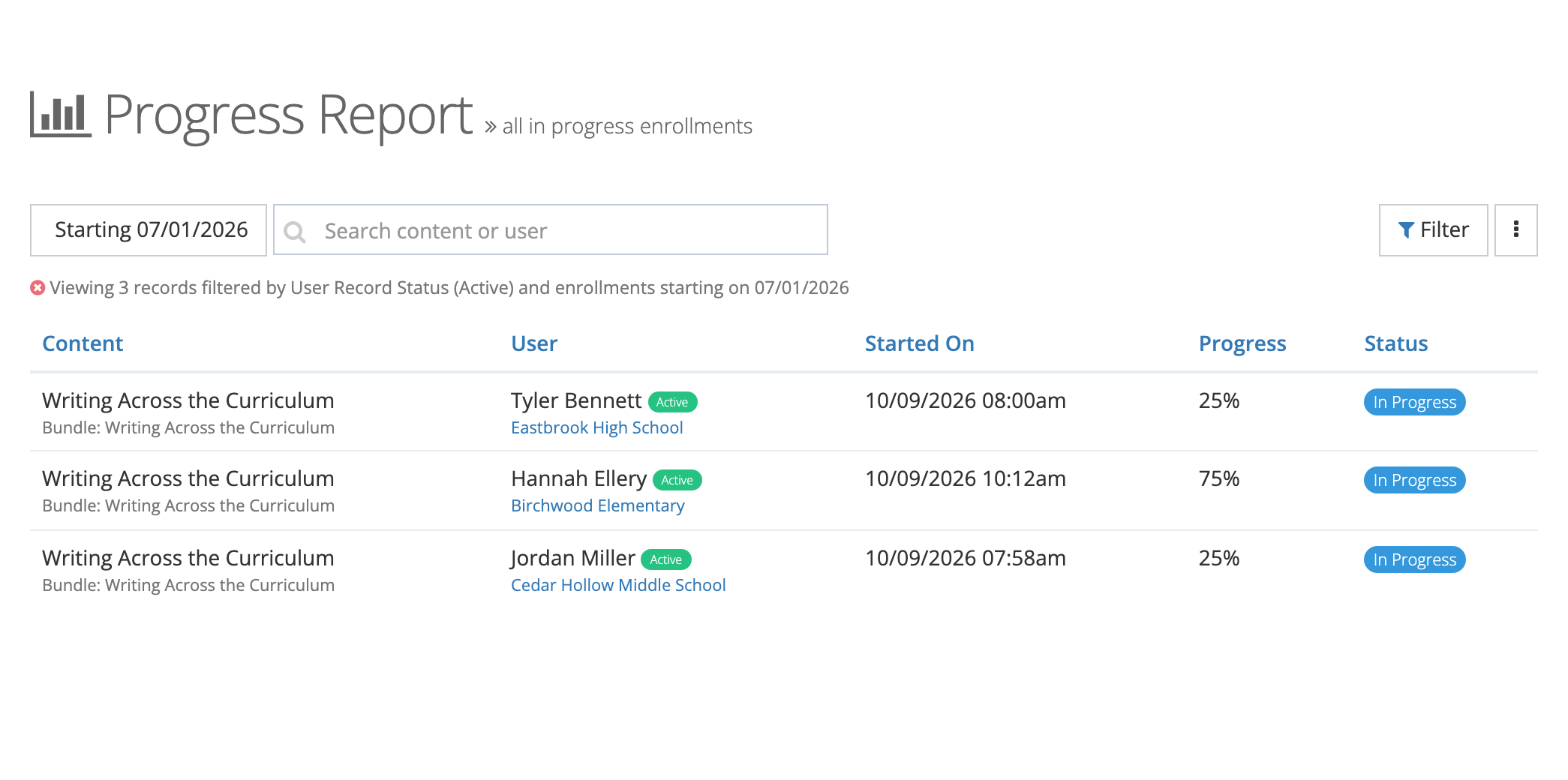
Section titled “What the report includes”The report shows an enrollment when either of these is true:
- The person has started the content and it is not complete (progress above 0%).
- The person finished it before and is retaking it, but has not started the new attempt.
It covers the people in the organizations you can see.
Columns
Section titled “Columns”| Column | What it shows |
|---|---|
| Content | The content title. If the person reached it through a bundle, a “Bundle:” line names the bundle. Categories appear below when the content has them. |
| User | The person’s name, an Active or Archived badge, and their organizations. |
| Started On | When the person first opened the content. |
| Progress | Percent complete. |
| Status | In Progress or Not Started for content that tracks a score. Not Complete for content that does not. |
Select a column heading to sort by it.
Search and date filter
Section titled “Search and date filter”- Type in Search content or user to match a content title or a person’s first or last name.
- The date button filters by Started On. The report opens showing enrollments started since the beginning of the current school year (July 1). Choose a preset such as Last 90 Days or All Time, or enter a Start Date and End Date and select Apply.
Filters
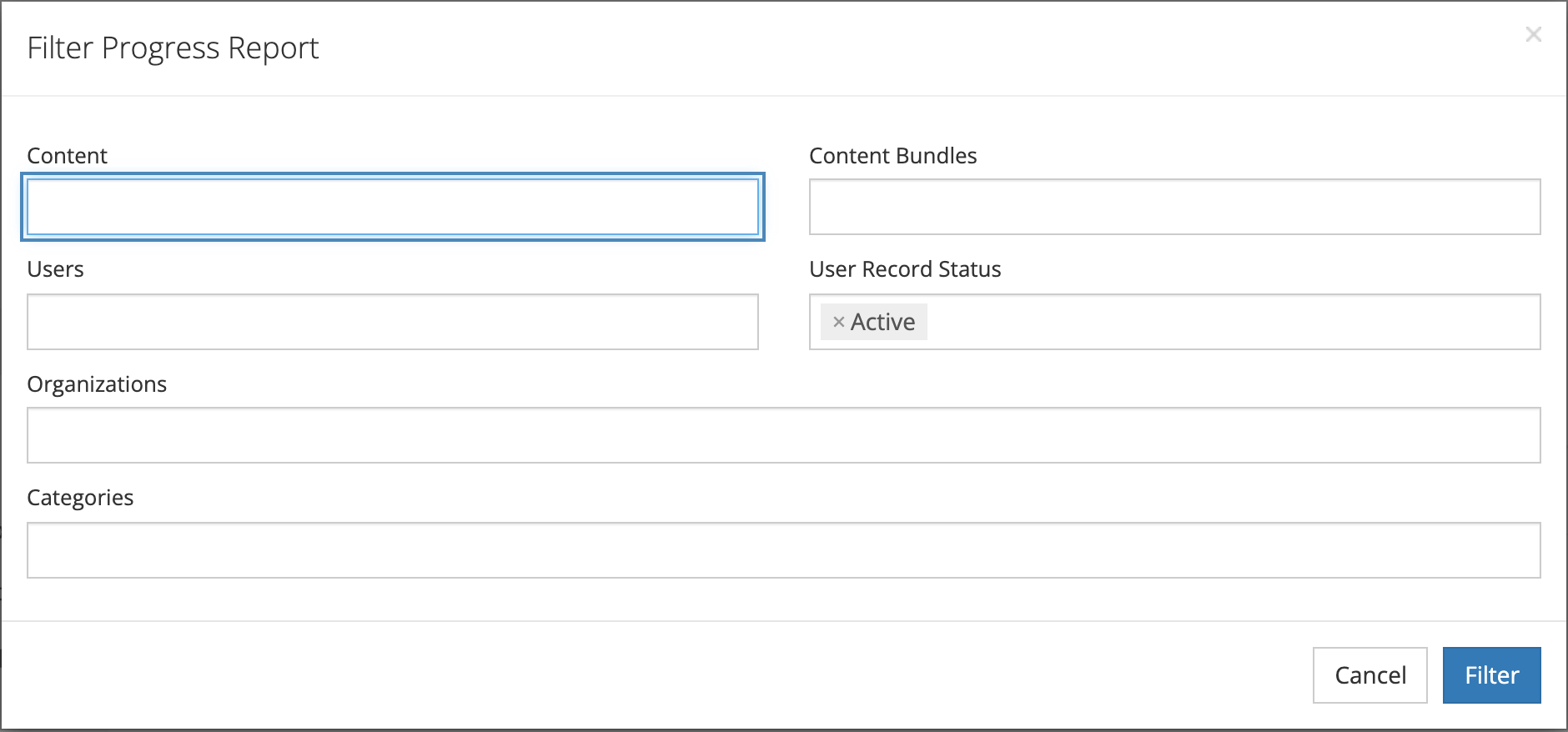
Section titled “Filters”Select Filter to open Filter Progress Report, set any of these, and select Filter:
- Content: one or more courses, assessments, or other content.
- Content Bundles: content that belongs to the bundles you pick.
- Users: one or more people.
- User Record Status: Active is selected by default. Add Archived to include people who have left.
- Organizations: people who belong to the schools or offices you pick.
- Categories: content tagged with the categories you pick.
The line above the table lists every filter in effect.
Export
Section titled “Export”Open the menu button (three dots) at the top right and select Export CSV. The file, progress_report.csv, uses your current filters and has the columns Content, User, Organization, Started On, Progress, and Status.
Using the report in a school
Section titled “Using the report in a school”- Before a deadline: filter to one course and sort by Progress to see who is furthest behind.
- For one school: filter by Organizations and share the export with the principal.
- For coaching follow-up: search for a teacher’s name to see everything they have open.